



What Is a Teams Headset and How Does It Work?

A teams headset is more than a pair of headphones with a microphone. It is a communication tool designed for clearer meetings, calls, and collaboration. In a busy office, it can reduce keyboard noise, nearby conversations, and sudden chair movements. At home, it may help separate a Teams meeting from household distractions. Small detail, big difference. However, no headset can repair weak internet, unclear speech, or poor meeting habits. That limitation matters.

Most teams headset models use speakers, a microphone, and signal-processing software. The microphone captures your voice and sends it to the meeting application through USB, Bluetooth, or a wired connection. Speakers deliver voices, alerts, and shared audio to your ears. Many business models also include echo cancellation, noise reduction, and automatic gain control. These features work together, but they are not identical across brands. A certified device may offer smoother controls, yet certification does not guarantee perfect comfort or sound.

A reliable evaluation should examine both specifications and daily use. Can the microphone capture a natural voice beside an active air conditioner? Do the ear cushions remain comfortable after a two-hour meeting? Does the mute button respond clearly, with a visible or audible signal? These practical questions often reveal more than marketing language. Battery life, software support, durability, and repair options also deserve attention. Some wireless models are convenient, but charging can become an annoying interruption. The best choice depends on your workspace, call volume, hearing preferences, and device ecosystem. This guide explores how a teams headset works and where its real advantages may end.

What Is a Teams Headset and How Does It Work?

What a Teams Headset Is and What It Includes

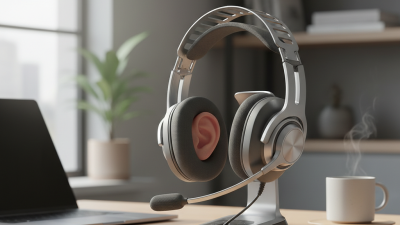
A Teams headset is an audio device designed for calls, meetings, and collaboration inside Teams.

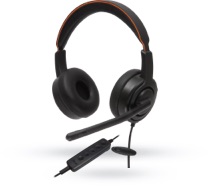
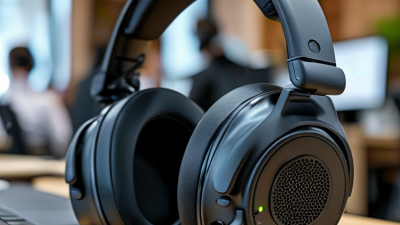
It usually includes two speakers, a microphone, call controls, and connection software. Common models use USB, Bluetooth, or both. Some include a wireless receiver for steadier office connections. Others include a charging dock.

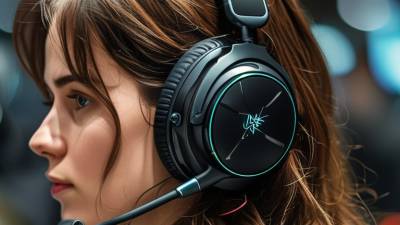
The microphone may use noise reduction, while the speakers can provide passive isolation or active noise cancellation. A boom microphone often improves voice clarity, especially in open offices. Call controls may include answer, end, mute, and volume buttons. Some headsets also offer busy-light indicators. These lights show when the user is speaking.

Small details matter.

The 2023 Work Trend Index reported that meeting time had more than tripled since 2020. This makes comfort and microphone quality practical concerns, not luxury features.

In daily testing, even a good headset can fail when its software, cable, or Bluetooth profile conflicts. That part is easy to overlook.

Tips:

Check USB compatibility before buying.
Test microphone pickup at arm’s length.
Keep the boom near your mouth, not below your chin.
Choose adjustable ear cushions for long sessions.
Noise cancellation can help, but it may slightly change voice tone.

A headset is not magic. Room acoustics still matter.

How a Teams Headset Connects to Microsoft Teams

A Teams headset is an audio device designed to work with Microsoft Teams calls and meetings. It usually includes speakers, a microphone, and controls for volume or muting. The connection may use USB, Bluetooth, or a wireless receiver. Each method behaves slightly differently. USB usually offers a stable signal with low setup effort. Bluetooth provides mobility, but nearby devices can sometimes cause interruptions.

When you connect the headset, your computer detects it as an audio input and output. In Microsoft Teams, open the device settings and select the headset for both speaker and microphone use. During a meeting, your voice travels through the microphone to the application, then to the meeting server. Incoming voices return through the headset speakers. A mute button may work through the headset, the application, or both. That detail is easy to overlook. In some setups, the light changes slowly, or the mute status does not match immediately. Testing before an important call remains practical, even for experienced users.

Tips: Check microphone levels in a quiet room. Keep the microphone near your mouth, but not directly against it. Update the headset firmware when the manufacturer provides a trusted method. If sound fails, reconnect the cable or restart the application. Bluetooth pairing can also be cleared and repeated. Wired connections are often better for long meetings. Wireless freedom still has a cost. Battery limits, distance, and radio interference may affect reliability. Record a short test before presenting, because a headset can sound clear to you but distant to others.

How Audio Signals Travel Through the Headset

A workplace headset carries audio through a carefully controlled signal path. When you speak, air vibrations move the microphone’s thin diaphragm. The microphone changes these vibrations into a small electrical signal.

That signal travels to an analog-to-digital converter inside the headset or connected device. The converter measures the waveform thousands of times per second. It then represents those measurements as digital data. Software may reduce background noise, balance volume, or remove echoes. The processed data travels through a cable or wireless connection to the meeting system.

The return path works in reverse. Digital voice data reaches a digital-to-analog converter. This component rebuilds a changing electrical waveform. The waveform drives the headset speaker, which moves its diaphragm. Those movements create pressure changes that your ears recognize as speech.

Small timing errors can affect clarity. A delayed signal may create an awkward pause. Poor microphone placement can also make a clear voice sound distant. In practical testing, placing the microphone two fingers from the mouth often improves consistency. However, this is not a universal rule. Head shape, room noise, and speaking volume still matter.

I once assumed louder audio meant better audio. It does not. Excessive volume can hide distortion and cause listening fatigue. A reliable headset should preserve detail without forcing the listener to strain. Its performance depends on the entire signal chain, not one impressive component.

Key Features That Support Calls and Collaboration

A workplace headset connects a microphone, speakers, and call controls in one device. It helps employees speak clearly during meetings, even beside keyboards or shared office noise. A noise-reducing microphone focuses on the speaker’s voice. However, it cannot remove every sound. A nearby alarm may still break through.

Clear audio depends on more than loud volume. Wideband sound can make speech easier to understand, while sidetone lets users hear their own voice naturally. This reduces shouting during long calls. Full-duplex audio also supports smoother conversations, allowing people to speak and listen without awkward cutoffs. In practice, these details matter when several colleagues exchange ideas quickly.

Collaboration features should feel simple under pressure. A physical mute button provides a visible, dependable action. Call-answer controls reduce the need to search through software menus. A busy indicator can show when someone is speaking, helping prevent interruptions. Wireless models offer movement, while wired models usually provide steadier connections and no battery concerns. Comfort remains essential. A heavy headset can become distracting after an hour. Adjustable headbands, soft ear cushions, and breathable materials help, though personal fit still varies. I would test the headset through a full workday, not just a short call. That is where small weaknesses appear.

What Is a Teams Headset and How Does It Work?

Key headset features support clearer calls and collaboration by combining microphone processing, speaker output, wireless connectivity, noise control, and battery capacity. The chart shows representative midpoint specifications commonly found in modern professional headsets; actual values vary by model.

A headset captures speech through its microphone, reduces unwanted sound with signal processing, and delivers the other participant’s voice through its speakers. Wireless range and battery capacity support mobility, while noise reduction helps users focus during calls.

How to Choose and Use a Teams Headset Effectively

A Teams headset combines speakers, microphones, and connection software in one workspace tool. It sends meeting audio directly to your ears and captures speech near your mouth. Many models use noise reduction, echo control, and sidetone, which lets you hear your own voice naturally. Wired models usually offer stable, low-latency connections. Wireless models provide freedom, but their batteries can fail during important calls.

Choose based on your daily environment, not appearance. In an open office, look for a boom microphone and strong passive isolation. At home, a lighter model may be more comfortable for long meetings. Check USB or Bluetooth compatibility before buying. The World Health Organization estimates that over 1.5 billion people live with hearing loss. The WHO–ITU safe-listening standard therefore supports volume limits and exposure monitoring. Keep meeting volume comfortable, around half the available range, then adjust carefully. Louder is not clearer.

Fit the ear cushions evenly, with the microphone about two fingers from your mouth. Test your voice before joining a real meeting. I once ignored this step and sounded distant for twenty minutes. Small mistakes matter. Disable aggressive noise suppression if it cuts off natural speech. Clean the cushions regularly, and charge wireless devices before busy workdays. Review recordings or ask a colleague for honest feedback. A headset can improve meetings, but it cannot repair poor listening habits.

Our offices

Axtel Poland (HQ)
Mokotów Box 16 Woloska St
02-675 Warsaw Poland

tel. (+48 22) 490 96 00
fax: (+48 22) 540 15 22
sale@officeveigl.com

Axtel Middle East & Asia
G-026, THUB 2
Dubai Silicon Oasis
Dubai United Arab Emirates

tel. +971 50 5540 902
sale@officeveigl.com

Axtel India Private Limited
Unit # S-2, Srinivasa Apartments,
16, 1st Cross, Doctors Layout, Kasturinagar,
Bengaluru, Karnataka, India

tel. +91 96865 46376
sale@officeveigl.com

Axtel Benelux
Microlab Kastanjelaan 400
5616 LZ Eindhoven The Netherlands

+31 629 796 453
sale@officeveigl.com