

Why Is My USB Headset Not Working?

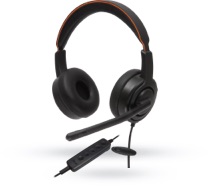
Why Is My USB Headset Not Working? is a practical question with several possible answers. A usb headset can fail because of a muted microphone, a damaged cable, missing permissions, or an incorrect output device. The problem may appear suddenly. Your headphones worked yesterday, but today your computer sends sound through its built-in speakers.

Audio engineer and author Mike Senior has said, “Troubleshooting becomes reliable when you change one variable at a time.” That advice fits usb headset problems well. Unplug the headset, wait ten seconds, and connect it to another USB port. Check whether the operating system detects it. Then inspect the sound settings, microphone permissions, and mute switch. A small red light can reveal the issue.

Some faults are less obvious. A headset may work in music software but fail in a video meeting. Another app may already control the microphone. USB power problems can also interrupt audio, especially through an unpowered hub. Testing the headset on a second computer creates useful evidence. If it works there, your original settings deserve attention.

This guide will separate software errors from hardware failures. It will explain driver checks, privacy settings, port testing, and application controls. It will also address uncomfortable possibilities, including a worn cable or a defective headset. Not every fix succeeds. Sometimes, my first assumption is wrong. Careful testing prevents wasted replacements and makes the final diagnosis more trustworthy.

Why Is My USB Headset Not Working?

Define the Failure: USB Audio Class 1.0/2.0 and 500–900 mA USB Power

Why Is My USB Headset Not Working?

USB audio failures often begin with a power assumption. The USB-IF USB 2.0 specification rates a standard downstream port at 500 mA. USB 3.0 raises that figure to 900 mA. A headset usually needs less, but microphones, lighting, vibration motors, and internal amplifiers can increase demand. A weak hub, damaged cable, or unstable port may still allow detection while audio remains silent.

The USB Audio Class also matters. UAC 1.0 is widely supported and usually suits basic playback and recording. UAC 2.0 supports newer clocking methods, higher sample rates, and more complex audio features. However, the operating system must provide the correct class driver. Check the device’s reported class, sample rate, and channel format before blaming the headset. Some failures are not failures.

In practical troubleshooting, connect the headset directly to the computer. Watch whether it repeatedly disconnects when the microphone activates. Then test another port, preferably one rated for standard 500–900 mA output. The USB-IF compliance framework emphasizes interoperability, but compliant hardware can still expose poor cable quality or insufficient hub power. I often assume software is responsible first. That assumption is easy, and sometimes wrong. A basic power meter and the system’s USB event log can reveal the overlooked detail.

Inspect Ports and Cables: USB-IF Detection, Power, and Physical Damage Checks

Why Is My USB Headset Not Working?

Inspect the port before blaming the headset. A loose USB socket can interrupt power and data within seconds. Check for dust, bent contacts, or a port that moves when touched. USB-IF testing treats connector integrity and proper device detection as essential compliance conditions. If the computer never registers a USB device, the problem may begin at the physical connection.

Try another known-working port, preferably one directly connected to the computer. Avoid hubs during testing because shared power can confuse diagnosis. USB Power Delivery 3.1 supports up to 240 watts, according to USB-IF technical documentation, but a headset usually needs far less. Still, a damaged cable may carry power while failing data communication. That partial failure is easy to miss. Watch for intermittent lights or repeated connection sounds.

Inspect the entire cable, especially near the plug and headset housing. Flattened insulation, sharp bends, or exposed shielding indicate replacement is safer than repair. USB-IF’s Type-C specifications distinguish cable capabilities through identification and electronic marking requirements. Therefore, an unsuitable or damaged cable can limit detection or performance. On a desktop, try the rear port rather than a front-panel extension. On a laptop, test both sides if available. I sometimes overfocus on software settings; that is a poor habit when the port feels loose or the cable only works at one angle.

Verify System Routing: Windows Playback Devices, Mute States, and App Permissions

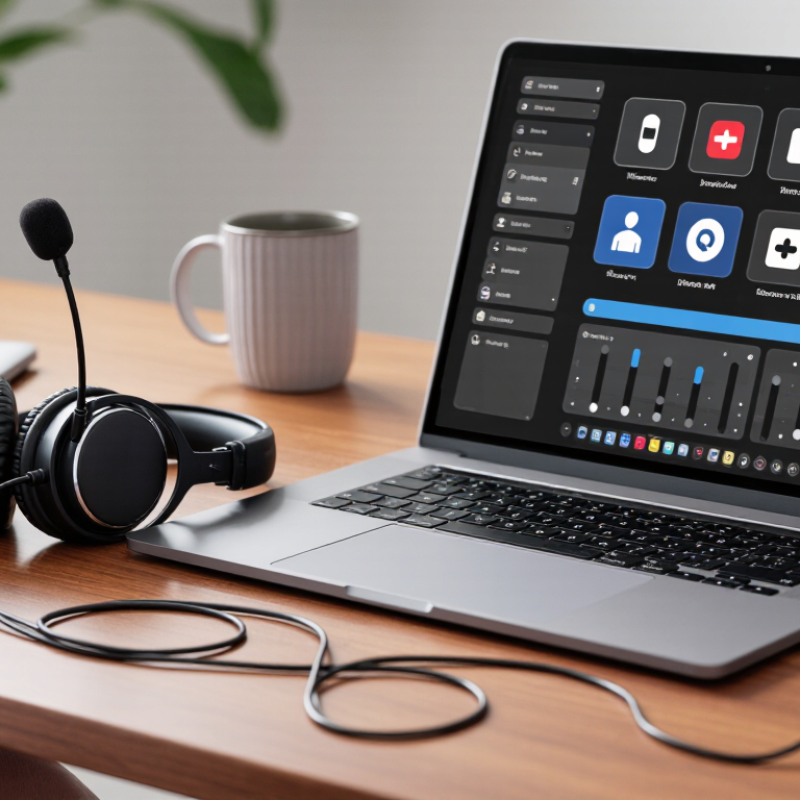
A USB headset can appear connected yet remain silent because Windows routes sound elsewhere. Open the Playback Devices panel and select the headset as both Default Device and Default Communications Device. Then play a test tone. Check its volume, balance, and disabled status. I once blamed the headset immediately. That assumption was wrong.

Mute states hide in several places. Inspect the headset’s physical mute switch, Windows volume mixer, and the meeting app’s microphone control. In each app, choose the USB headset for input and output instead of “System Default.” Windows microphone privacy settings must also permit desktop applications. Browser-based meetings may need separate site permission.

Pew Research Center reported in 2024 that 35% of workers with remote-capable jobs worked from home exclusively, while 41% used hybrid schedules. Routing failures therefore affect ordinary work, not only technical users.

The U.S. Bureau of Labor Statistics’ 2023 American Time Use Survey found that 22.9% of employed people worked from home on days worked. Before replacing hardware, disconnect other audio devices and restart the affected app. Check whether exclusive-control settings redirect playback after a restart. This step is easy to overlook. If sound works in a basic system test but not one application, the application’s device selection or permission is the stronger suspect. I still recheck the default device after major system updates, because settings can change without an obvious warning.

Reinstall or Update Drivers: Class-Compliant USB Audio and Vendor Software

A USB headset can appear powered yet remain silent when its driver has failed. I once blamed the headset, but the real problem was a damaged audio entry after a system update. Open your operating system’s device manager and inspect the USB audio section. If the headset appears with a warning icon, remove its driver and restart the computer. Keep the headset unplugged during the restart. Then reconnect it directly to a computer port.

Most USB headsets use class-compliant audio drivers built into the operating system. These drivers usually support playback, microphones, and volume controls. If the microphone still fails, check for a newer system update through official settings. Avoid random driver-download websites. Their files may be outdated, modified, or incorrectly matched. After installation, test the headset in sound settings, not only inside one meeting app. Select it for both input and output, then speak near the microphone grille.

Some headsets depend on vendor software for equalizers, buttons, or advanced microphone processing. Install that software only from the manufacturer’s verified support page. However, extra software can conflict with class-compliant drivers. My earlier fix failed because I installed two utilities without checking which controlled the microphone. Remove unused audio utilities, reboot, and test one configuration at a time. A second USB port can expose a weak connection. If the device repeatedly disappears, test it on another computer before replacing it.

Isolate the Fault: Cross-Test the Headset, Port, Computer, and USB Hub

Why Is My USB Headset Not Working?

Isolate the fault before changing drivers. Disconnect the headset from the USB hub. Plug it directly into the computer. Test every available port, including one on the opposite side. A front port may share power with other devices, while a rear port often connects directly to the motherboard. Listen for the connection sound and check whether the headset appears in the system’s input and output settings.

Cross-test the headset on another computer. Then connect a known-working USB headset to the original computer. These two checks separate headset failure from computer configuration problems. IDC’s 2024 Worldwide Quarterly Personal Computing Device Tracker recorded about 262.7 million PC shipments in 2024. That scale reflects a wide mix of hardware, ports, and operating systems, so one computer’s result cannot prove universal compatibility.

Now test the USB hub separately. Remove other devices from it, especially storage drives and cameras. If the headset works directly but fails through the hub, suspect power limits, bandwidth sharing, or hub firmware. USB-IF specifications distinguish power and data capabilities across USB versions, and similar-looking ports may behave differently. Check the connector for looseness, dust, or a bent contact. I once blamed a faulty headset too quickly; the real problem was a partly inserted plug. Retest after each change. Tiny mistakes matter.

Our offices

Axtel Poland (HQ)
Mokotów Box 16 Woloska St
02-675 Warsaw Poland

tel. (+48 22) 490 96 00
fax: (+48 22) 540 15 22
sale@officeveigl.com

Axtel Middle East & Asia
G-026, THUB 2
Dubai Silicon Oasis
Dubai United Arab Emirates

tel. +971 50 5540 902
sale@officeveigl.com

Axtel India Private Limited
Unit # S-2, Srinivasa Apartments,
16, 1st Cross, Doctors Layout, Kasturinagar,
Bengaluru, Karnataka, India

tel. +91 96865 46376
sale@officeveigl.com

Axtel Benelux
Microlab Kastanjelaan 400
5616 LZ Eindhoven The Netherlands

+31 629 796 453
sale@officeveigl.com